 MigosVideo
How to Create a Hotel Lobby AI Video from Two Photos
A practical guide to choosing photos, comparing real examples, checking video costs, previewing sound and downloading your Hotel Lobby AI duo video.
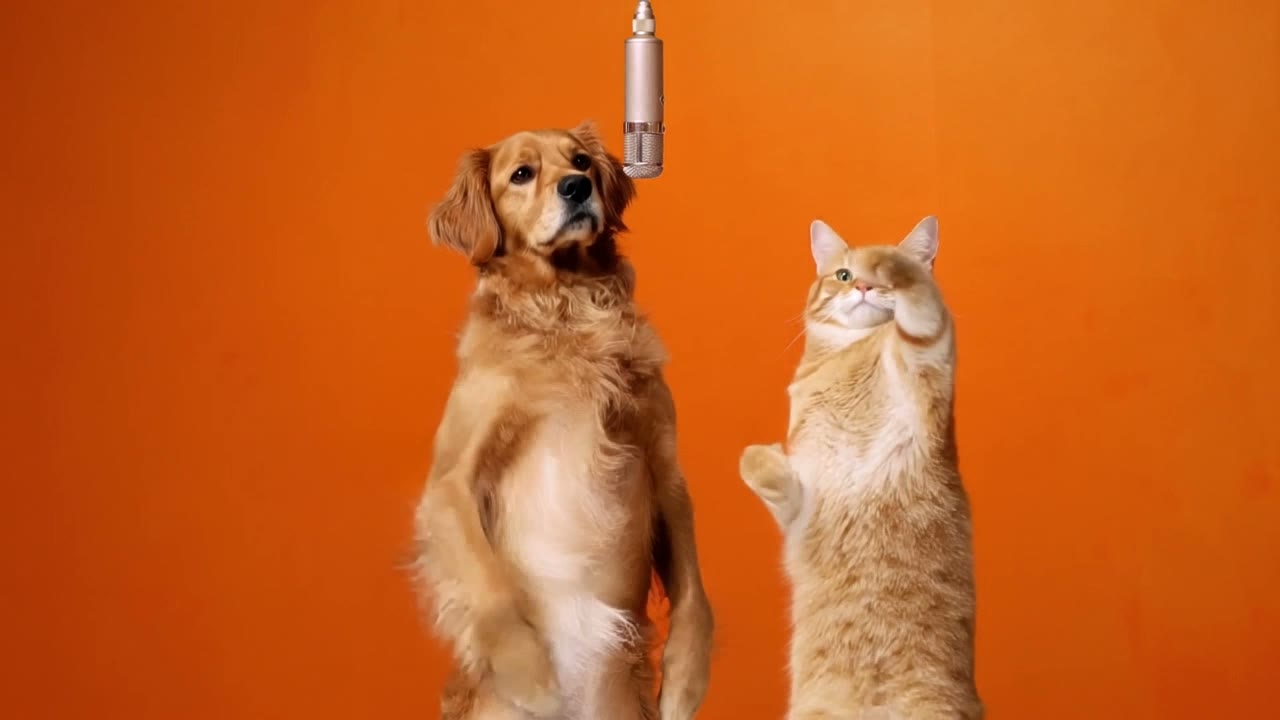
MigosVideo is a browser-based tool that turns two photos of adults or pets into a Hotel Lobby–style duo performance. Choose who stands on each side, set the duration and format, and generate an MP4 with sound. You need an account and enough credits to generate a full video; viewing examples and preparing photos is free.
This guide documents the current product and its public examples. AI-generated appearances, movements and sound can vary; a reference photo is not a guarantee of an exact likeness.
What should you prepare?
- Two images: one clear adult or pet in each photo.
- Permission to use both photos and the likeness of each real person.
- A clear, well-lit face or muzzle, with minimal obstruction and no other subject competing for attention.
- Clothing you want the model to use as a reference. Avoid relying on tiny logos or text reproducing exactly.
The first photo is the left performer and the second photo is the right performer. You can swap the sides before confirming generation. Use the generator's Photo tips for preparation help.
1. Compare a completed video with its input photos
Start with an example that resembles your intended subjects:
- Two men: fictional adult portraits, 10 seconds.
- Dog and cat: a pet duo, 10 seconds.
- Mixed duo: two real portrait photos, 15 seconds.
Each page includes the actual input photos, a playable result, its duration and resolution, and the credit cost for those settings. These are public demonstrations, separate from customers' private video libraries.
Choose Create with these settings to load the example's format into the generator. This copies the settings, not the example's photos; you still choose your own images and confirm the charge.
2. Choose duration, resolution and orientation
Available settings are 5, 10 or 15 seconds, 720p or 1080p, and 16:9 landscape, 9:16 portrait or 1:1 square. The linked completed examples demonstrate landscape 720p results. Available settings and demonstrated examples are different: the examples do not prove identical quality for every combination.
Choose portrait if the intended placement is a vertical feed; choose landscape to match the published examples. A five-second attempt uses fewer credits than a longer attempt at the same resolution. Check both the displayed price and selected settings before confirming.
How much does it cost? Is it free?
The smallest one-time pack costs US$4.99 for 150 credits. It covers up to 3 five-second videos at 720p. Purchased credits never expire. There is no subscription or automatic renewal.
| Duration | 720p | 1080p |
|---|---|---|
| 5 seconds | 50 credits | 70 credits |
| 10 seconds | 100 credits | 140 credits |
| 15 seconds | 150 credits | 210 credits |
Full video generation is paid. Signing up does not currently include free generation credits; gifted or promotional credits already in your account can be used. Compare all available packs on the pricing page.
Credits are reserved when a task is accepted, charged once on success, and returned on confirmed failure. A pending or uncertain task keeps its reservation until resolved. A credit return is distinct from a cash refund; see the refund policy.
3. Listen to the template sound
Use Hear the template sound beside the generator, or the sound preview on an example page when available. The template provides the performance, timing, music and voices; your photos guide appearance and clothing. This workflow does not clone your voice or let you write a new rap song.
The completed MP4 includes sound, but AI processing can change the reference audio. Purchasing credits does not grant rights to third-party music, brands or likenesses. Check the rights needed for your intended use.
4. Generate, return and download
- Open the generator, choose your two photos and confirm their left/right order.
- Sign in, review the format and required credits, and purchase credits if needed.
- Confirm generation. Submitted photos are checked before video processing.
- The task runs in the background. You can leave the page and return to My videos using the same account.
- When ready, play the result and download the MP4. Downloads have no visible watermark from the site or video provider.
Generation time varies with the provider and queue. Refreshing the page is not a reason to submit another paid job; check the existing task first.
What if the faces, sides or sound are wrong?
First check whether each input showed one unobstructed subject and whether the photos were assigned to the intended sides. The same adult appearing in both roles has not yet been validated in a completed example; do not treat this as a guaranteed supported result.
For severe identity mixing, clearly incorrect identities on each side, missing or unplayable files, or missing or materially different template sound, select Request review in My videos. Describe the problem and give a timestamp. The form attaches the task reference. Support reviews the case individually and may offer credits, a retry or another appropriate resolution; automatic or unlimited free remakes are not included.
Who can see the photos and results?
Before submission, photo drafts remain on your device. Viewing task details and accessing a video through the site requires the owning account. A private task page is not a public sharing page. While a result is awaiting archiving, playback can use a provider-hosted URL; avoid sharing that direct URL if you want the result kept private.
The two-hour draft lifetime applies to local browser drafts, not to submitted-photo deletion. Submitted photos currently have no automatic fixed deletion deadline. Deleting an archived video removes its video file and library entry, not the source photos. Contact Support to request submitted-photo deletion; the privacy policy explains further retention details.
How should you disclose the AI edit?
Use the destination platform's AI disclosure setting when required. See YouTube's altered or synthetic content guidance and TikTok's AI-generated content guidance. Do not present a generated performance as an authentic recording of someone.
Review the AI acceptable use policy before generating. Report content concerns to Support.
Create your duo · Compare pet input photos and output · Check current prices